
What counts as a task
At work, “task” means two things. It is one particular piece of work, such as fixing the login bug in ticket INV-231. And it is a kind of work, such as bug fixing. The two are tracked differently, so settle which one you mean first.
In Time Tracker Software HQ a task is a task type: a kind of work, attached to a project. There is no list of individual tasks to tick off. The particular task is named in the note on each entry, so every entry answers three questions:
| The question | In the app | Example |
|---|---|---|
| What was the work for? | Project | Invoicing App |
| What kind of task was it? | Task type | Bug Fixing |
| Which task exactly? | Note | INV-231 login fails after reset |
There is a reason for the split. Kinds of work stay the same from month to month, so their hours add up to something you can compare. Individual tasks come and go by the hundred, and your ticket system or board already lists them. The note ties an entry to that list.
It is also how to track time spent on tasks at work, where several people share a project: everyone picks from the same short list, so their hours can be added together.
Step 1: Set up task types for a project
An admin does this once, on the website.
- Click Task Types in the sidebar, then Add New.
- Enter a Name for the kind of work, such as Development or Bug Fixing.
- In Projects, choose the projects that should offer it.
- Press Submit, and repeat for each kind of work.
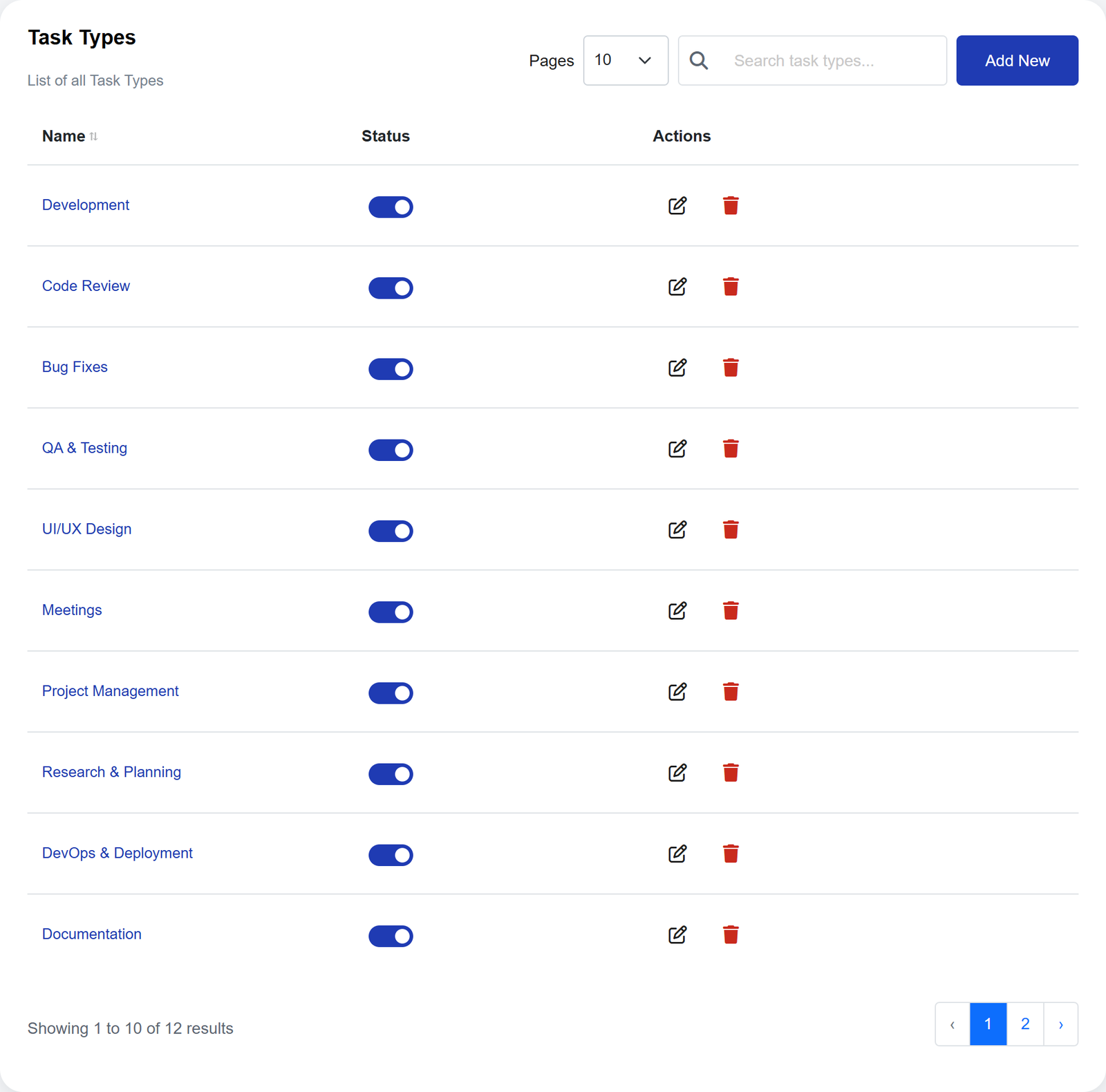
A task type belongs to the organization, not to one project. You create Bug Fixing once and attach it to every project that has bugs to fix. For a new project it is quicker from the other side: the project’s own form has a Task Types field.
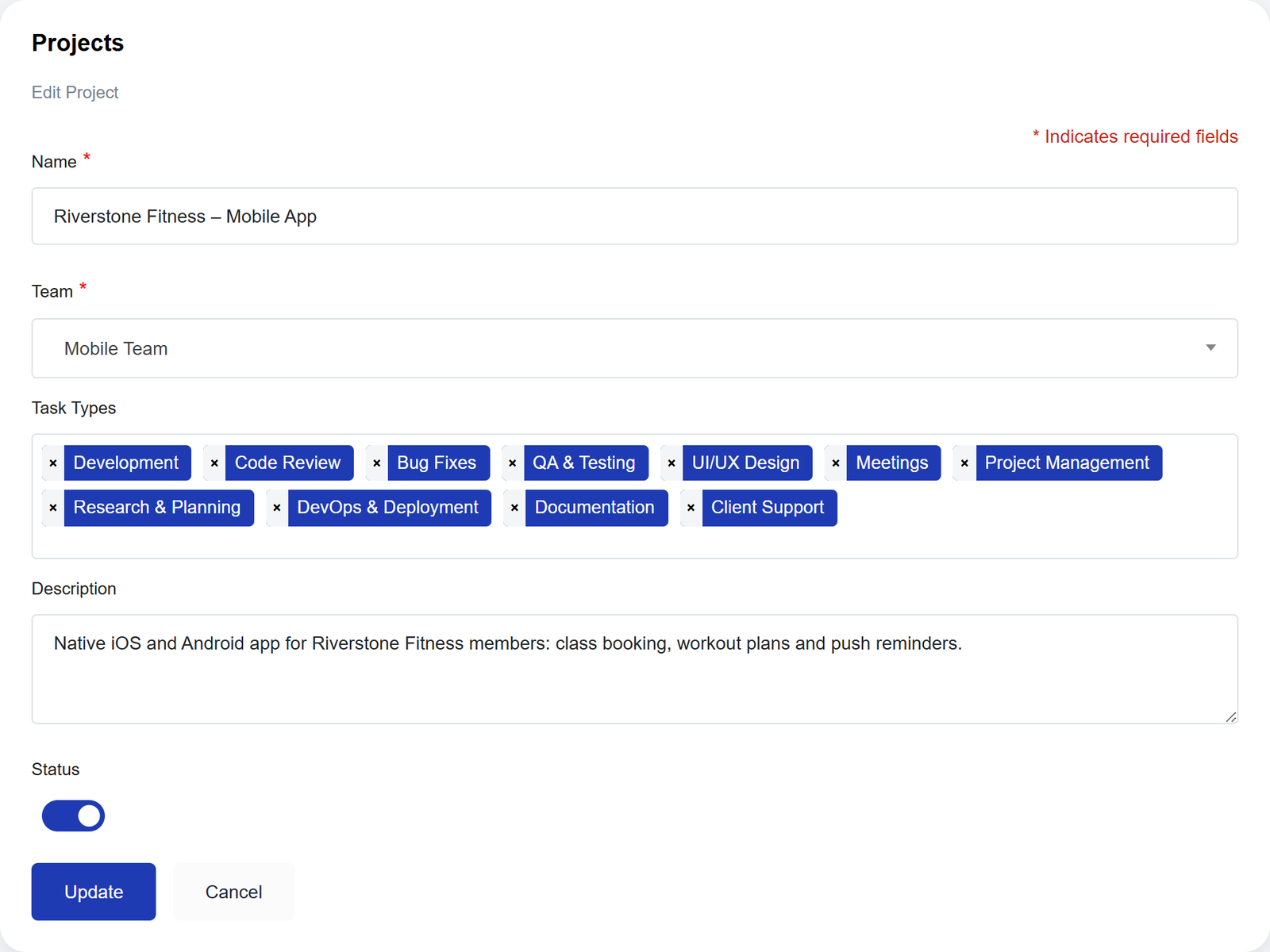
Three rules keep the list useful:
- Name kinds of work, not pieces of work. “Bug Fixing” is a task type. “Fix the login bug” is a note.
- Keep it short. People pick from this list many times a day. Around ten is plenty.
- Give every project at least one. The timer asks for a task type before it will start.
Step 2: Track a task with the timer, and put the detail in the note
A task time tracker has one job: to know when you started a task and when you stopped. Here that is the desktop app, for Windows and Linux.
- Choose the Project the task belongs to.
- Choose the Task Type. Only that project’s task types are listed, and typing narrows the list.
- In Description, write the task itself: its ticket number or its name.
- Press Start when you begin, and Stop when you finish or switch.
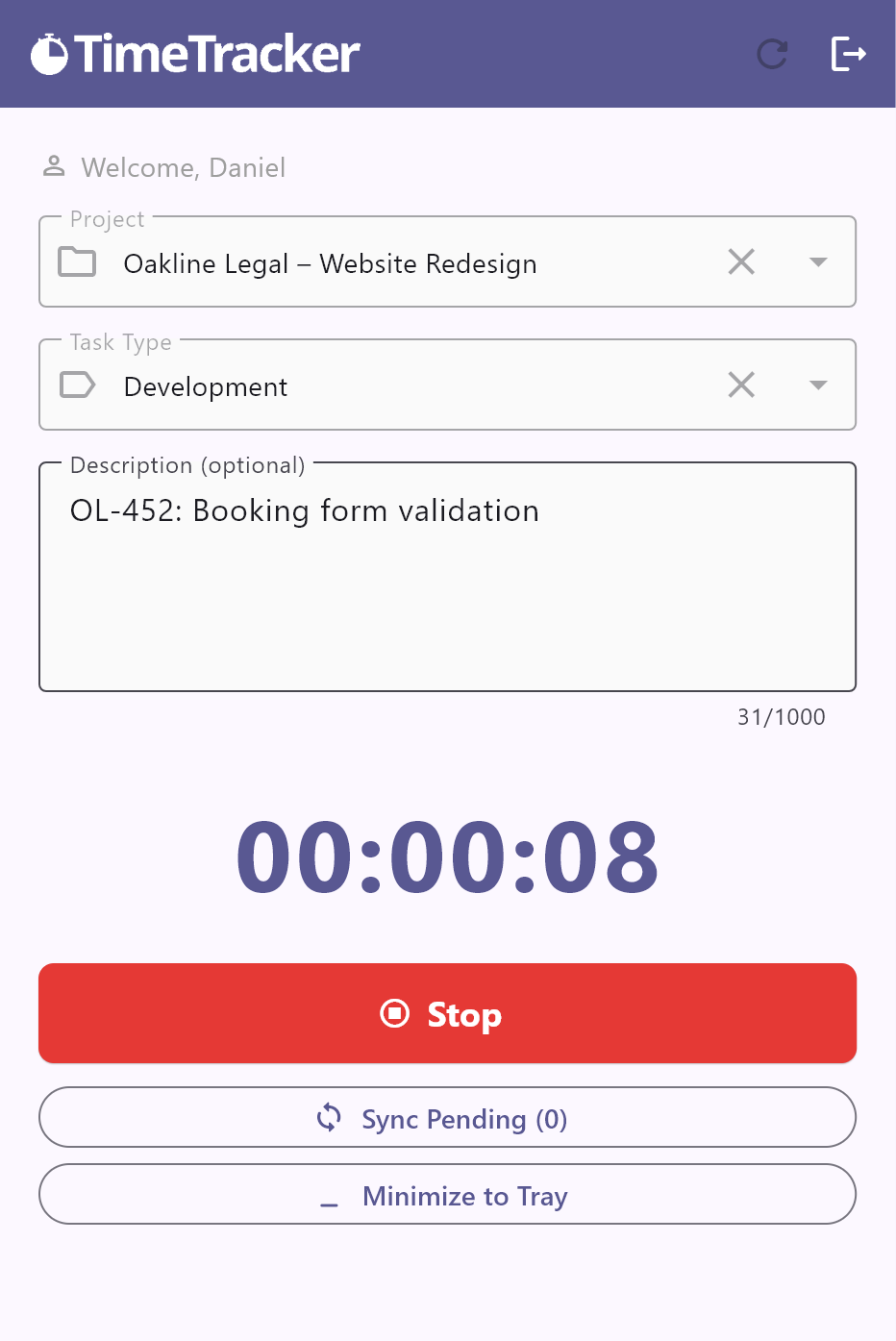
The timer runs one entry at a time. For the next task, press Stop, write the new note and press Start. The project and task type stay selected after a stop, so change them only if the work changed.
What to put in the note
- The task’s name as your tracker writes it. The note is the only place the particular task is recorded, and the same wording every time is what lets you find all of its entries later.
- One task per entry. Two tasks in one note are tracked as one, and nobody can tell afterwards how the time was shared.
- Something, always. The note is optional, so the timer will start without it. The entry then says Bug Fixing, and not which bug.
Step 3: See the hours by task type in Reports
Time tracking by task pays off on the website. Every entry carries its task type, so Reports can add up the hours of one kind of work.
- Open Reports from the sidebar.
- Set Date From and Date To. The list stays empty until you do.
- Choose the Project and the Task Type, then press Go.
- Read Total Working Hours at the bottom: the time that kind of work took on that project, over every page of the list.
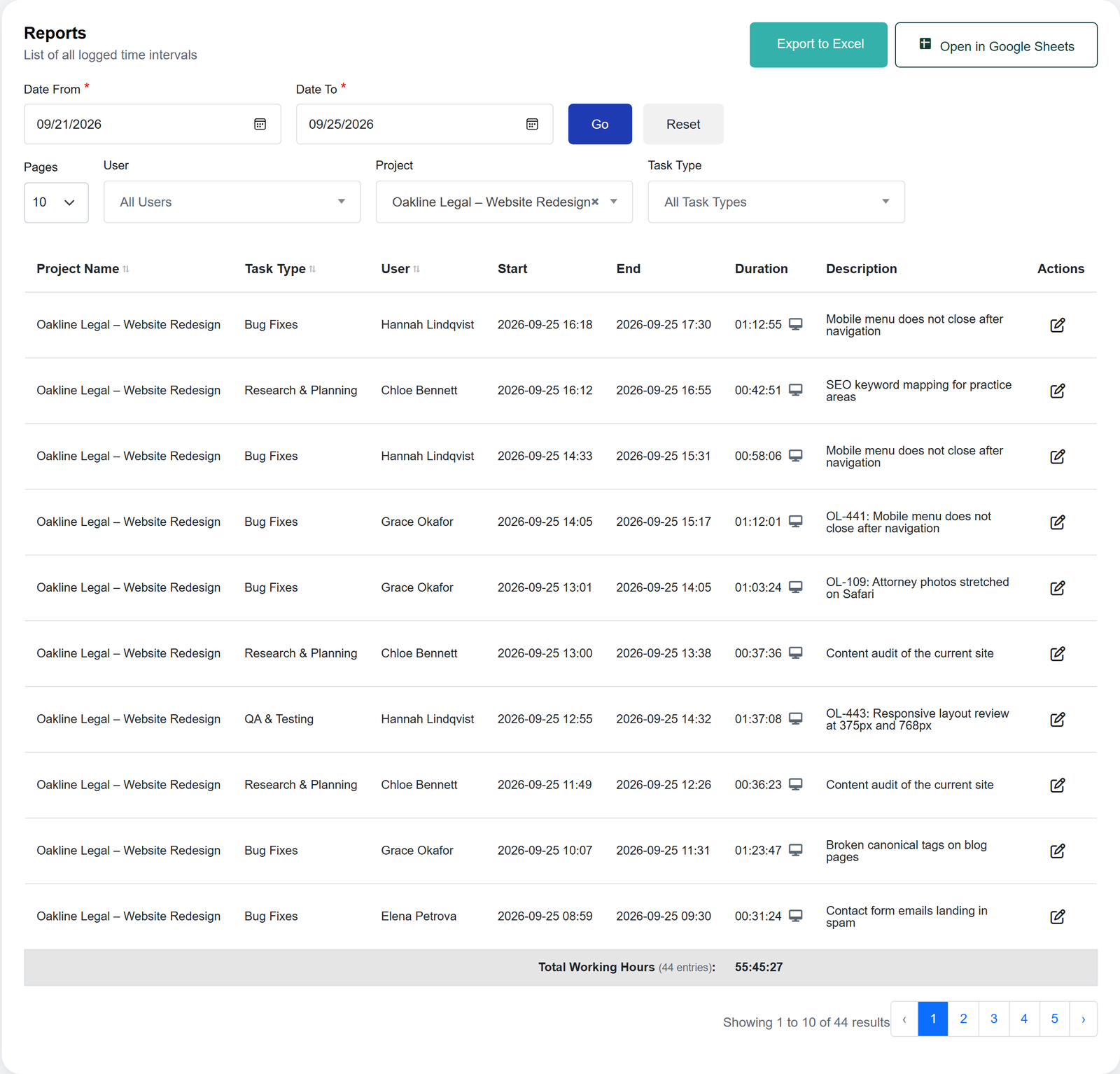
The same screen answers three more questions:
- One kind of work across every project?
- Leave Project on All Projects and choose only the Task Type. The total is all the bug fixing, or all the meetings, in the entries you are allowed to see.
- Every task type at once?
- Reports shows one total at a time. Click the Task Type heading to bring each kind of work together in the list, or press Export to Excel and let a pivot table add each one up.
- One particular task?
- Its name is in the Description column of every entry. Reports does not search notes, so for the total of one ticket, export to Excel and filter that column for its number.
Examples: seven task types, and a task for each
These seven cover most of a software team’s week. Each row is a task as it might sit on your list, the task type it is tracked under, and the note that names it.
| Task type | A task on your list | The note |
|---|---|---|
| Development | Add a CSV export to the invoice list | INV-204 CSV export for invoices |
| QA | Test release 2.3 before it ships | Release 2.3 regression pass |
| Bug Fixing | Login fails after a password reset | INV-231 login fails after reset |
| Code Review | Read a teammate’s pull request | INV-204 review of PR #88 |
| Meetings | Plan the next sprint | Sprint 14 planning |
| Documentation | Write up the partner API | Partner API guide: authentication |
| Deployment | Put release 2.3 live | Release 2.3 to production |
One ticket can pass through several task types. INV-204 is Development while it is built and Code Review while a teammate reads it. The ticket number in both notes is what lets you add the two together.
Where Development ends and Bug Fixing begins is worth agreeing on as a team. Developer time tracking draws those lines.
Common mistakes
- A task type for every ticket. The list grows by the day and no two weeks can be compared. Kinds of work go in the list; tickets go in the note.
- Two names for one kind of work. With both QA and Testing in the list, half the team picks each and neither total is right. Keep one.
- An empty note. The report says six hours of Bug Fixing and cannot say which bugs.
- A different wording each time. “INV-231”, “inv 231” and “login bug” are one task to you and three to a filter.
- One timer for the whole morning. Three tasks in one entry are tracked as one. Stop and start when you switch.
- Deleting a task type that has hours. The entries stay, but they show a dash where the task type was and the filter stops offering it. To retire a kind of work, take it off your projects instead.
Frequently asked questions
Keep the list of tasks in one place, such as a ticket system, a board or a shared sheet, and record the time as you work instead of from memory on Friday. With Time Tracker Software HQ that means starting the timer on the project and the task type, with the ticket number or task name in the note.
Time Tracker Software HQ is free for every seat while it is in early access, and signing up needs no credit card. It is a start and stop timer for Windows and Linux, with the reports and an Excel export on the website. You will be told well ahead if that changes.
It depends on what you call a task. If you want the hours for each kind of work on each project, such as development, QA and meetings, a timer with projects and task types like Time Tracker Software HQ fits, and the task name goes in the note. If you need a separate timer on every item of a to-do list or a board, choose a tool built around a task list. Time Tracker Software HQ does not have one.
Both, in two fields. The task type records the kind of task, such as Bug Fixing. The specific task goes in the note: write its ticket number or name and it is saved with the entry, shown in Reports and included in the Excel export. Reports adds up hours by task type, so for the total of one ticket, export to Excel and filter the Description column.
Use one row per stretch of work, with columns for the date, the start, the end, the project and the task, and a duration that Excel works out as the end minus the start. A pivot table then adds up the duration of each task. Or track with the timer and press Export to Excel in Reports: the file has those columns already, one row per entry.