
Start and stop: the ten-second routine
Developer time tracking software fails when it costs more attention than it gives back. So the routine has to be small enough to do without thinking, at the moments you are switching tasks anyway. On the desktop app, for Windows and Linux, it is five steps:
- Pick the project. Click the Project field and type a few letters. The list narrows as you type.
- Pick the task type. Only the task types attached to that project are offered.
- Press Start. The clock starts counting, and the project and task type lock until you stop.
- Write the note once you know what the work is. The Description stays editable while the timer runs and is saved the way it reads when you stop.
- Press Stop when you change tasks, take a break or finish for the day.
The timer holds one entry at a time, so moving to other work is always Stop, pick, Start. After a stop the project and task type stay selected. Coming back to the same work after a break, the commonest case of all, is one click on Start.
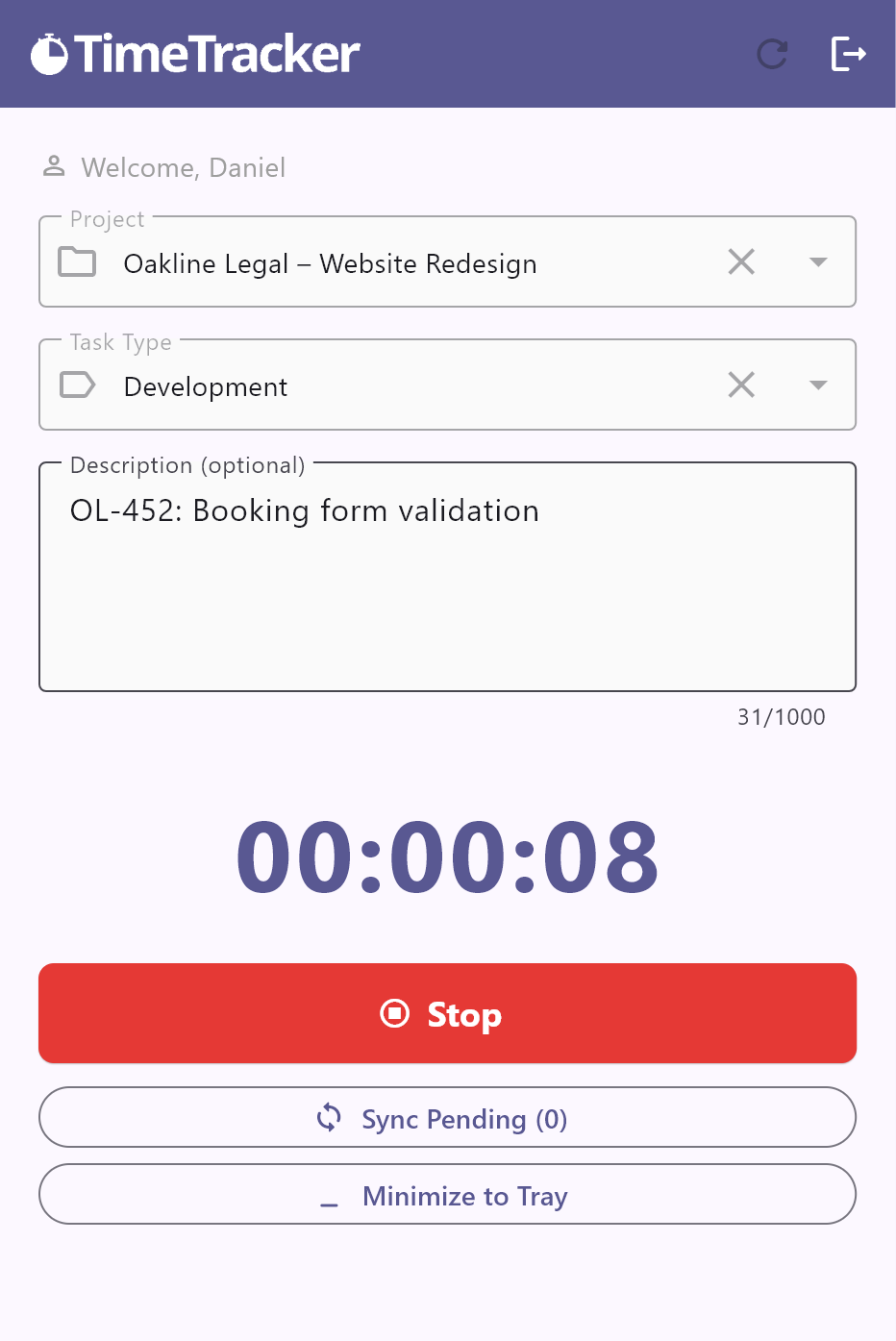
The window does not have to stay in front of you. Minimize to Tray hides it behind an icon in the system tray: green while a timer runs, blue when it is idle, orange when entries are waiting to be sent. Right-click the icon to start or stop without opening the window. Closing the window is a different thing. It stops a running timer and saves the entry.
Away from your desk? The same timer is on your phone: get it on Google Play for Android and download it on the App Store for iPhone .
Choosing the project and the task type
Two fields, two questions. The project is what the work is for. The task type is what you were doing.
- Pick by what you are doing right now, not by what the ticket is called. Reading a pull request for a bug fix is Code Review. An hour in a call about the release is Meetings.
- Work for another project is another entry. The project cannot be changed while the timer runs, so a switch between projects is a stop and a start. That is what keeps each project’s hours clean.
- Do not switch for every interruption. Under five minutes, leave the timer alone: it belongs to the task you are on. Longer than that, or for a different project, switch.
- A project is missing from the list? The list shows the projects of the teams you belong to, so ask whoever administers your organization to add you to its team. If the project is brand new, stop the timer and press the refresh icon at the top of the app.
The Developer Time Tracker: six task types
A developer time tracker is this same timer with a task-type list that matches a developer’s day. Six of them cover almost all of it:
The hard part is not the list. It is knowing where one type ends and the next begins, so that two people log the same work the same way.
| Pick | When you are | Where the line is |
|---|---|---|
| Development | Building a feature, refactoring, or answering review comments on your own pull request. | The bugs you make on the way to done are part of building it. So are the unit tests you write with the feature. |
| Code Review | Reading and commenting on someone else’s pull request. | Reviewing is the reviewer’s time. Acting on the comments is the author’s Development. |
| Debugging | Finding and fixing a defect in something already released. | It runs from the first log line to the merged fix. Kept apart, it shows what shipped work costs afterwards. |
| Testing | Running a regression pass or a release check, or writing tests for old code. | Use it when testing is the task itself, not a step inside a feature. |
| Documentation | Writing a README, a design note, API docs or a runbook. | A comment in the code is Development. A page somebody will read is Documentation. |
| Meetings | In stand-up, planning, a retrospective or a call. | Log it on the project the meeting is about. Pairing is not a meeting: each person runs their own timer on the work itself. |
Waiting for a build or a CI run needs no entry of its own. Leave the timer running if you are still on the task, and switch it if you move to something else.
Task types are created once for the whole organization, under Task Types on the website, and attached to each project. That is a job for whoever administers your organization. If your list looks nothing like this one, send them this page.
Writing the note
The Description is optional and holds up to 1,000 characters. It is also the only part of an entry that says what you actually did, and one line is enough if it is the right line.
- Lead with the ticket or pull request number. There is no connection to Jira, GitHub or any other tracker, so the number in the note is the link between the two.
- Say the thing, not the activity. The task type already says Debugging. The note should say what was broken.
- Write it when you know. Start first. Fill the note in once the work has a shape, any time before you stop.
- Keep secrets out. Notes are read by you, by admins and by your team lead, and they travel with every Excel export. No tokens, passwords or customer data.
The same four entries, vague and useful
codingbecomesCHK-218 idempotency keys for refundsreviewbecomesPR #641 webhook retriesfixesbecomesCHK-231 duplicate refund email in productionmeetingbecomesSprint planning, sprint 42
Working offline
Trains, hotel Wi-Fi, a VPN that drops when it likes: the timer does not need a connection to do its job. You need one to sign in the first time. After that, this is what happens without it.
- The app opens and the timer starts. It shows the project list from the last time it was online, and Start is recorded on your computer, not on a server.
- Stop saves the entry on your computer. You see “Saved offline,” and a notice at the top counts what is waiting: “1 interval(s) pending sync.”
- It sends them by itself. The app tries again when it opens, every two minutes while anything is waiting, and whenever the project list refreshes. Sync Pending does it on demand.
- The times do not move. An entry keeps the start and stop you pressed, however much later it is delivered.
- Nothing is doubled. Every entry gets its own ID the moment the timer starts. If the same entry is sent twice, the server keeps one.
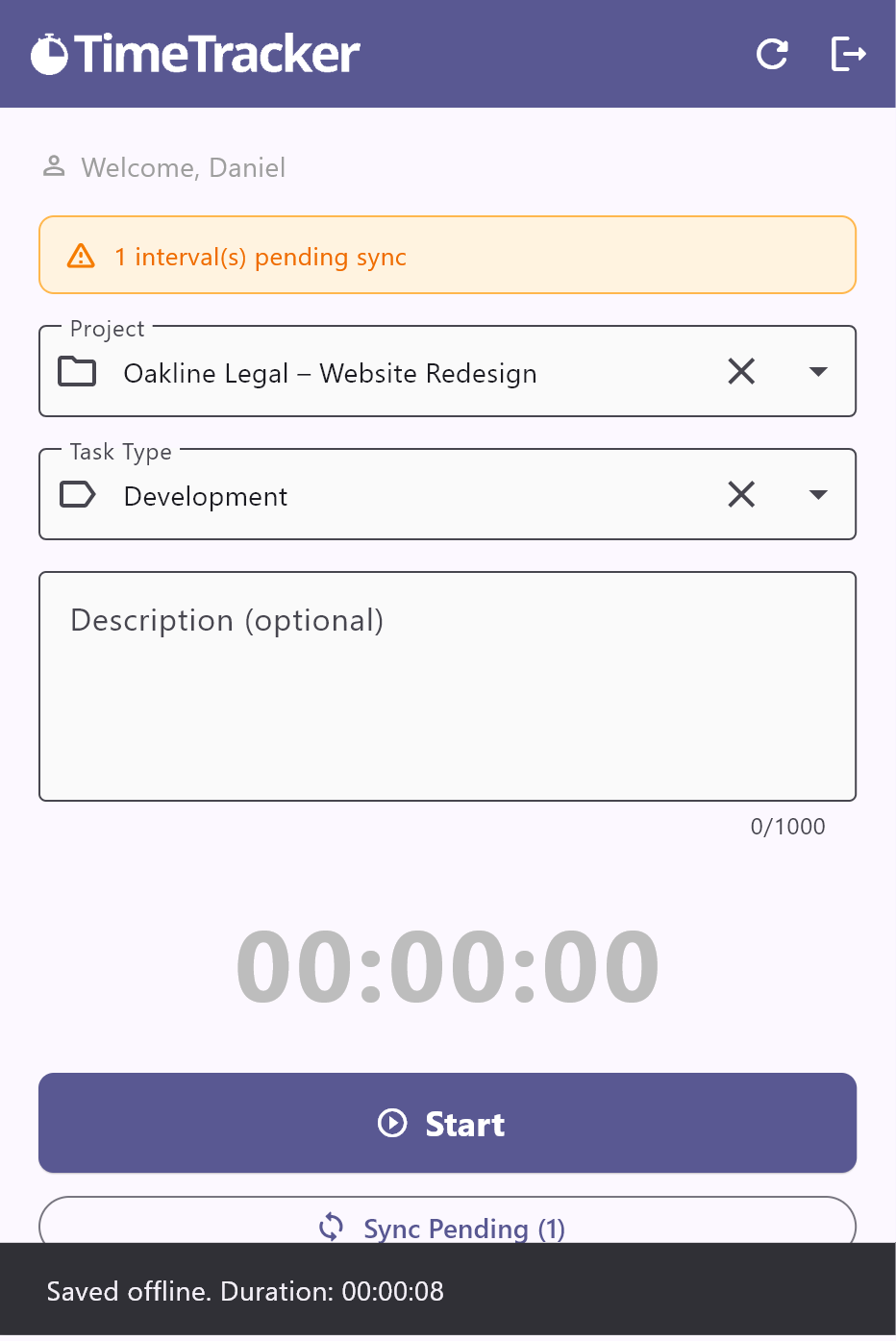
Until they are sent, those entries exist only on that computer. Closing the app or signing out does not lose them. They go up the next time you are signed in and online. Uninstalling the app or wiping the machine before the count reaches zero does lose them.
Each of these steps, and why a retry cannot double an entry, is explained in our guide to offline time tracking software.
Correcting entries
You will get entries wrong. Everyone does. A team that expects perfect entries gets guesses typed in on Friday instead, so the working rule is: track first, correct afterwards.
Corrections are made on the website, not in the timer. Open Reports, choose the dates, and an edit icon sits next to each entry you are allowed to change. It lets you change the project, the task type, the start, the end and the description. The clicks are in the complete guide.
Whether you see that icon depends on your role. If it is there, fix the entry yourself. If it is not, send the entry and the right times to your team lead or an admin. Either way the change is written to the activity log with the old and the new values, so a correction is on the record and not a quiet rewrite.
The usual slips, and what to do
- You forgot to start
- Start now. Once that entry is stopped, move its start back to when you really began.
- You forgot to stop
- Stop now, then set the end to when you actually finished. The timer never stops by itself, so one left running over lunch keeps counting until you do.
- Wrong project or task type
- Both are locked while the timer runs. Stop, pick the right ones and start again, then correct the entry you just closed.
- You tracked nothing at all
- The website has no form for adding an entry by hand. Record a short entry on the right project and task type, then correct its start and end to the real times.
- Two tasks ended up in one entry
- An entry cannot be split. Shorten it to the first task, then add the second the same way as work you did not track.
- The app closed or the laptop died mid-timer
- Open the app again. It shows the unfinished timer, measured up to the last moment it recorded, and asks whether to Save or Discard it.
What to track, and what to leave out
A time tracker for developers should leave a record you would recognise as your day, not a stopwatch on every keystroke.
Track
Work you would call work
- Writing, refactoring and reviewing code
- Debugging, including the hour that ended in a one-line fix
- Tests, documentation and release work
- Meetings, from stand-up to the long planning call
- Research and spikes for a project
- Helping a teammate, once it runs past a few minutes
Leave out
Everything else
- Lunch and breaks: stop the timer
- Commuting, and the gaps between tasks
- Each quick chat reply, which belongs to the task you are on
- A separate entry for every commit or file
- Hours you did not work, added to reach a round eight
That last one matters most. A day of real work rarely adds up to a round eight hours, and it should not be made to. Once entries are padded, the numbers stop being good for the one thing they are for: showing how long things actually take.
What the app does not track. It records what you choose: the project, the task type, your note, when you pressed Start and Stop, and which kind of device recorded the entry. It takes no screenshots, counts no keystrokes or mouse movement and keeps no list of the apps or sites you open. It does not detect idle time either, which is why a timer you forget keeps running.
An example day
This is what a day of software developer time tracking looks like in Reports: one developer’s Thursday, eight entries, two projects, and no entry for lunch.
| Project | Task Type | Start | End | Duration | Description |
|---|---|---|---|---|---|
| Checkout Service | Development | 08:40 | 09:25 | 00:45:00 | CHK-218 idempotency keys: first pass |
| Checkout Service | Meetings | 09:40 | 09:55 | 00:15:00 | Stand-up |
| Checkout Service | Development | 09:55 | 12:10 | 02:15:00 | CHK-218 idempotency keys for refunds |
| Checkout Service | Code Review | 12:10 | 12:40 | 00:30:00 | PR #641 webhook retries |
| Checkout Service | Debugging | 13:35 | 15:00 | 01:25:00 | CHK-231 duplicate refund email in production |
| Internal Tools | Development | 15:00 | 15:50 | 00:50:00 | Deploy script: staging flag |
| Checkout Service | Testing | 15:50 | 17:05 | 01:15:00 | CHK-218 regression pass on refunds |
| Checkout Service | Documentation | 17:05 | 17:30 | 00:25:00 | CHK-218 README: refund flow |
| Total Working Hours (8 entries): | 07:40:00 | ||||
What the table does not show
- The first entry was tracked on a train. There was no connection, so it waited on the laptop as “1 interval(s) pending sync” and went up from the office Wi-Fi. Its times are still the times on the train.
- Code Review really did end at 12:40. The timer was left running through lunch and stopped at 13:35. The end was corrected afterwards, and the activity log shows the change.
- Internal Tools is a second project. Switching to it meant a stop and a new start, so those fifty minutes went where they belong and not into Checkout Service.
- The day adds up to 7 hours 40 minutes. Nobody rounded it up to eight.
A timesheet template, if you still track in a spreadsheet
Not every team starts with a timer. If yours keeps its hours in a spreadsheet, this template is laid out like the day above: one row per stretch of work, with Date, Time From, To, Project, Task Type and Detail. Three columns fill themselves in: Person, Duration Hrs, and a Day Total on the last row of each date.
Download the timesheet template
It is a free Excel file that also opens in Google Sheets and LibreOffice. The second sheet explains which cells to fill in. The software development timesheet template page shows it filled in for a week and explains each column.
A spreadsheet works until the day someone has to chase it. The timer writes the same rows for you, with the times it measured and not the ones you remembered.
Frequently asked questions
No. An entry holds the project, the task type, your note, when you pressed Start and Stop, and which kind of device recorded it. Time Tracker Software HQ takes no screenshots, counts no keystrokes or mouse movement and keeps no list of apps or websites. It does not detect idle time either, so a timer keeps running until you press Stop.
No. The timer holds one entry at a time, and the project and task type are locked while it runs. To move to other work, press Stop, pick the new project or task type and press Start.
Stop it when you notice, then correct the end time of that entry in Reports on the website. If your role does not allow editing, ask your team lead or an admin to do it. The timer does not stop by itself.
Only if your role allows it. When it does, an edit icon appears next to the entry in Reports and you can change the project, task type, start, end and description. When it does not, a team lead or an admin makes the change. Every edit is written to the activity log.
There is no form for typing in a new entry. Record a short entry on the right project and task type, then correct its start and end to the real times. The activity log shows that the entry was adjusted.
Yes, once you have signed in. The timer starts and stops without a connection, saves the entry on your computer and shows how many are waiting. They are sent automatically when the connection is back, with the start and stop times you actually pressed.
No. There are no integrations with issue trackers, Git hosting or code editors today. Put the ticket or pull request number at the start of the note, and it travels with the entry into Reports and the Excel export.
Yes. Reports on the website lists your entries for any date range with a total at the bottom, and Export to Excel downloads the same rows as a spreadsheet.
The desktop timer runs on Windows and Linux, and there is an Android app on Google Play and an iPhone app on the App Store. A macOS version is launching soon. Projects, people and reports are managed on the website, in any modern browser.