
Who worked on what: person, team, project, task type and date
A team time tracker is only as good as the facts on each piece of work. In a team time tracking app like Time Tracker Software HQ, a person starts a timer for what they are about to do and stops it when they are done. That is one entry, and every entry carries the same six facts:
| On the entry | Where it comes from | What it tells you |
|---|---|---|
| Person | The account that ran the timer | Who did the work |
| Project | Picked in the timer before Start | What the work was for |
| Team | Nobody picks it: each project belongs to one team | Whose work it was |
| Task type | Picked in the timer, from the project’s own list | What kind of work it was |
| Date and time | The moments Start and Stop were pressed | When, and for how long |
| Note | Optional, typed in the timer | The detail: a ticket, a page, a client |
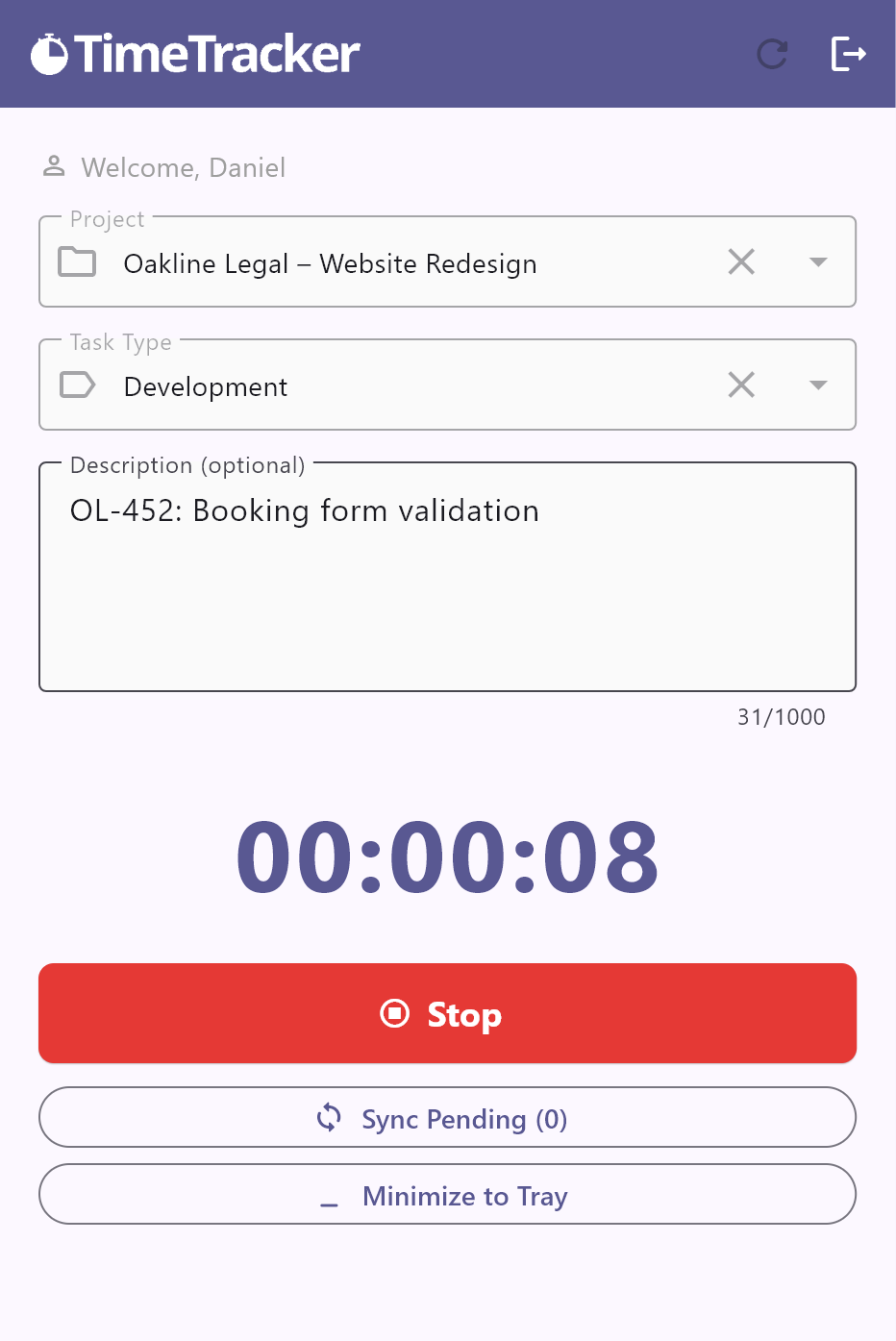
Nobody types hours in at the end of the week. Entries come only from the timer, made by the person doing the work while they do it, so the team’s record builds up as a by-product of the day.
And those six facts are all there is. Some staff time tracking software also captures screens or counts keystrokes. This does not; the FAQ lists exactly what is recorded. If your team works from home, the guide to time tracking for remote workers shows what each app is allowed to touch.
The questions a manager can answer
Because every entry carries those facts, the Reports screen answers a manager’s questions with a date range and one or two filters.
- Who worked on this project?
- Choose the dates and the project. The User column names everyone who logged time on it; click the User heading to bring each person’s entries together.
- How many hours went into it?
- Same filters. Total Working Hours at the bottom adds up every matching entry, including the ones on later pages.
- Which task types took the time?
- Click the Task Type heading to group the list by kind of work, or pick one task type in the filter and the total becomes that task type’s hours. Setting task types up is covered in how to track time spent on tasks.
- What did one person do last week?
- Choose last week’s dates and the person in User.
- Did anyone log nothing?
- Reports lists entries, so a person with no time is simply not in it. Pick them in User: “No records found for the selected filters” means nothing was logged in those dates.
What Reports does not do is set those answers side by side. It shows one list and one total at a time. For a table of every person or every task type at once, export the list and split it in Excel.
Set up teams and team leads
A team does two jobs at once. Its members decide who can track time on a project, and its lead decides who can read those hours. So draw each team around people who work together and the one person who should see their time.
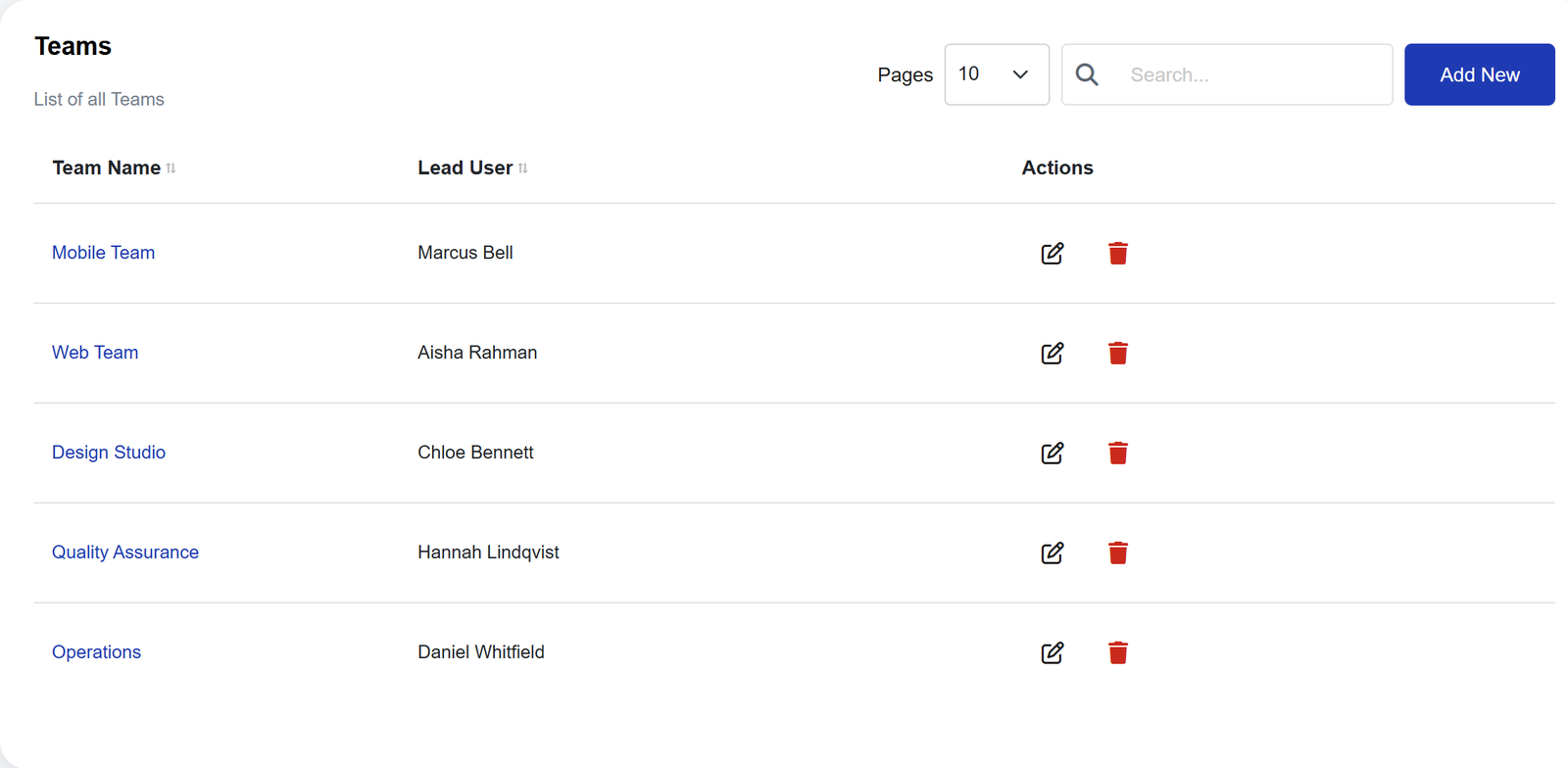
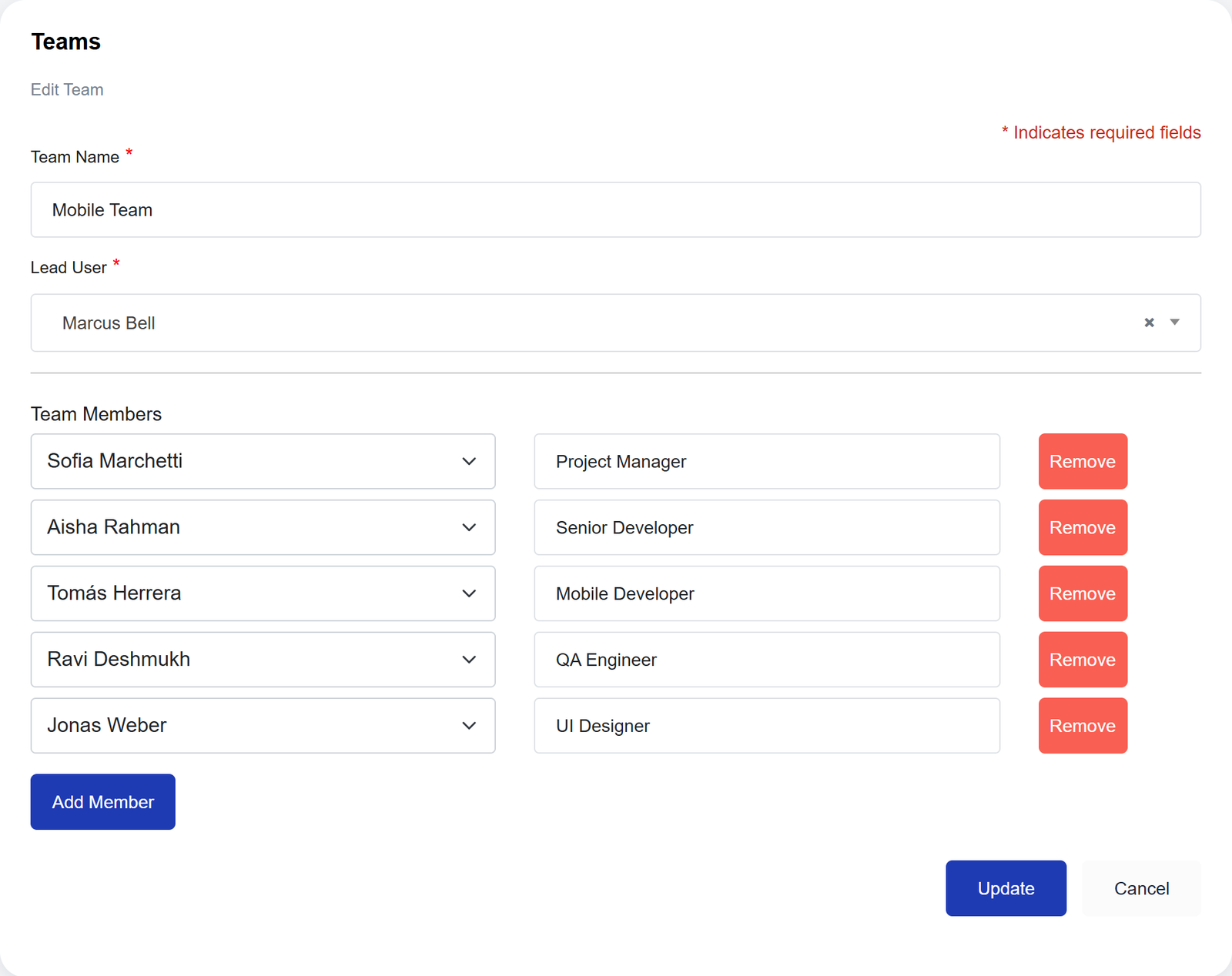
An admin creates teams under Teams in the sidebar. A team has three parts:
- Team Name. What you already call the group: Mobile Team, Support, Design Studio.
- Lead User. One person, and required. The lead tracks time on the team’s projects like everyone else, and is the one who sees the team’s hours.
- Members. Press Add Member for each person and give them a role, such as QA Engineer. The role is a label for your own reference; it does not change what they can do.
Three rules shape how you cut the teams:
- A project belongs to one team. You choose the team when you create the project, and only that team’s members and lead find it in their timer.
- A person can be on more than one team, and can lead more than one. A designer who works with both the Mobile Team and the Web Team is a member of both.
- The lead needs no special role. Being a team’s Lead User is what opens its hours to them.
Time tracking for small teams can start with a single team and the owner or manager as its lead. Split it the day two managers should each read a different group’s hours.
The clicks, one by one, are in the complete guide.
Read the hours for one team in Reports
Reports filters by date, person, project and task type. It has no Team filter, so a team’s hours are read in one of two ways, depending on who is looking.
If you lead the team
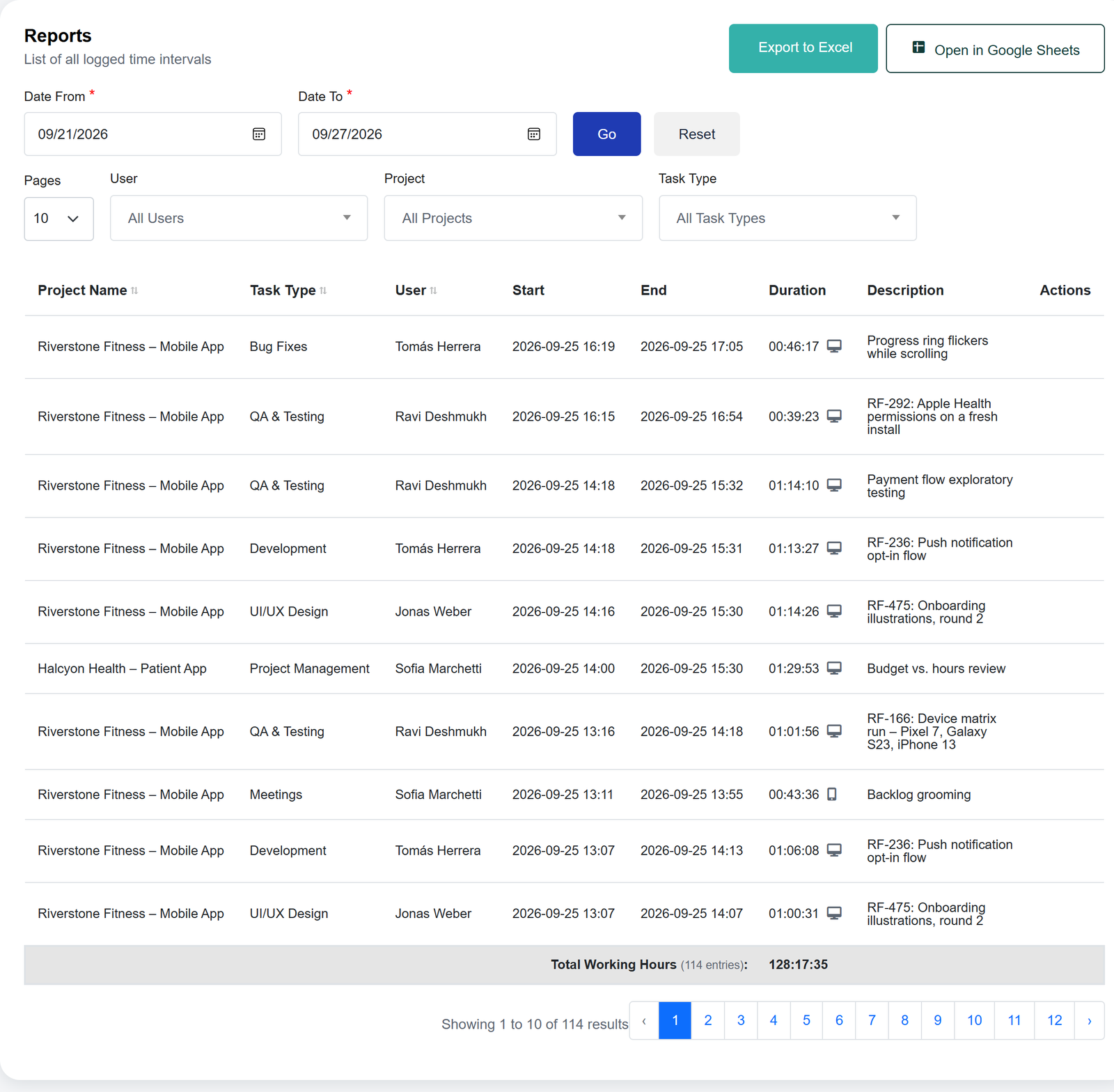
Open Reports, set Date From and Date To, and press Go. With no other filter you already have your team: your own entries, plus every entry your members logged on your team’s projects. The User list holds only your members, so picking a name gives you that person’s hours.
Three details keep that list honest:
- It covers your team’s projects. A member who also logs time on another team’s project has those hours in that team’s report, not in yours.
- It includes your own entries wherever you logged them. Pick one of the team’s projects to leave your other work out. If you lead two teams, picking a project is also how you tell them apart.
- Seeing is not editing. The edit icon appears beside an entry only if your role allows changing it.
If you are an admin
Admins, and anyone whose role can edit all entries, see the whole organization. Narrow it with the Project filter: a project belongs to one team, so its total is that team’s hours on it.
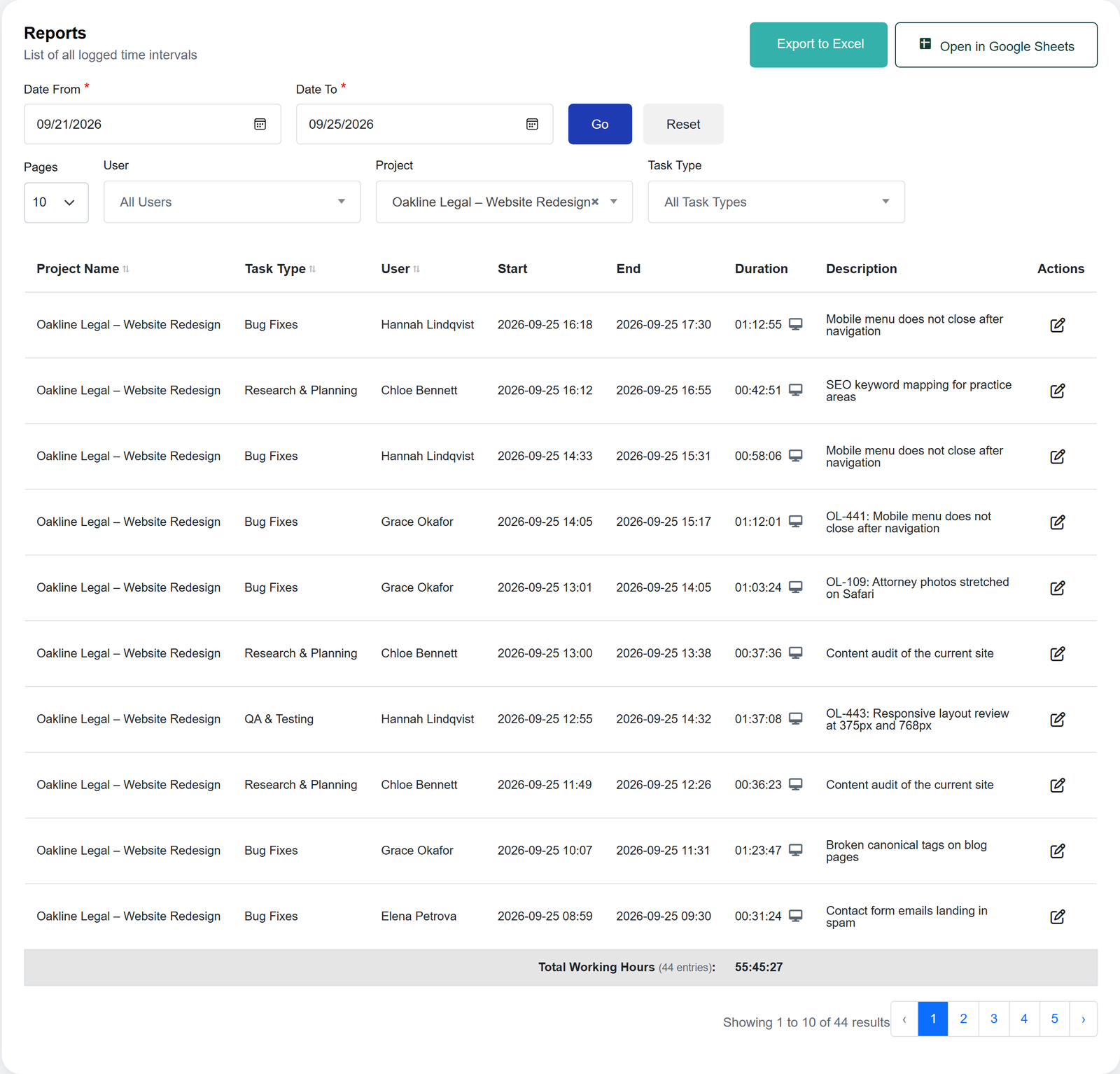
A team with several projects takes one run per project. Or leave Project on All Projects, press Export to Excel and add up the team’s projects there.
Last week at a glance
On Monday morning the useful view is the week that just ended. Reports has no “last week” button; it is two dates. Set Date From to last Monday and Date To to last Sunday, then press Go. Date To starts out as today, so move it back, or this week’s entries join the total.
From there, three moves cover most Monday questions:
- The team’s week. Total Working Hours at the bottom, with the number of entries it adds up beside it.
- One person’s week. Pick a name in User and the total becomes theirs.
- Who did what. Click the User heading to sort the list by person, and set Pages to 100 to see more of it at once.
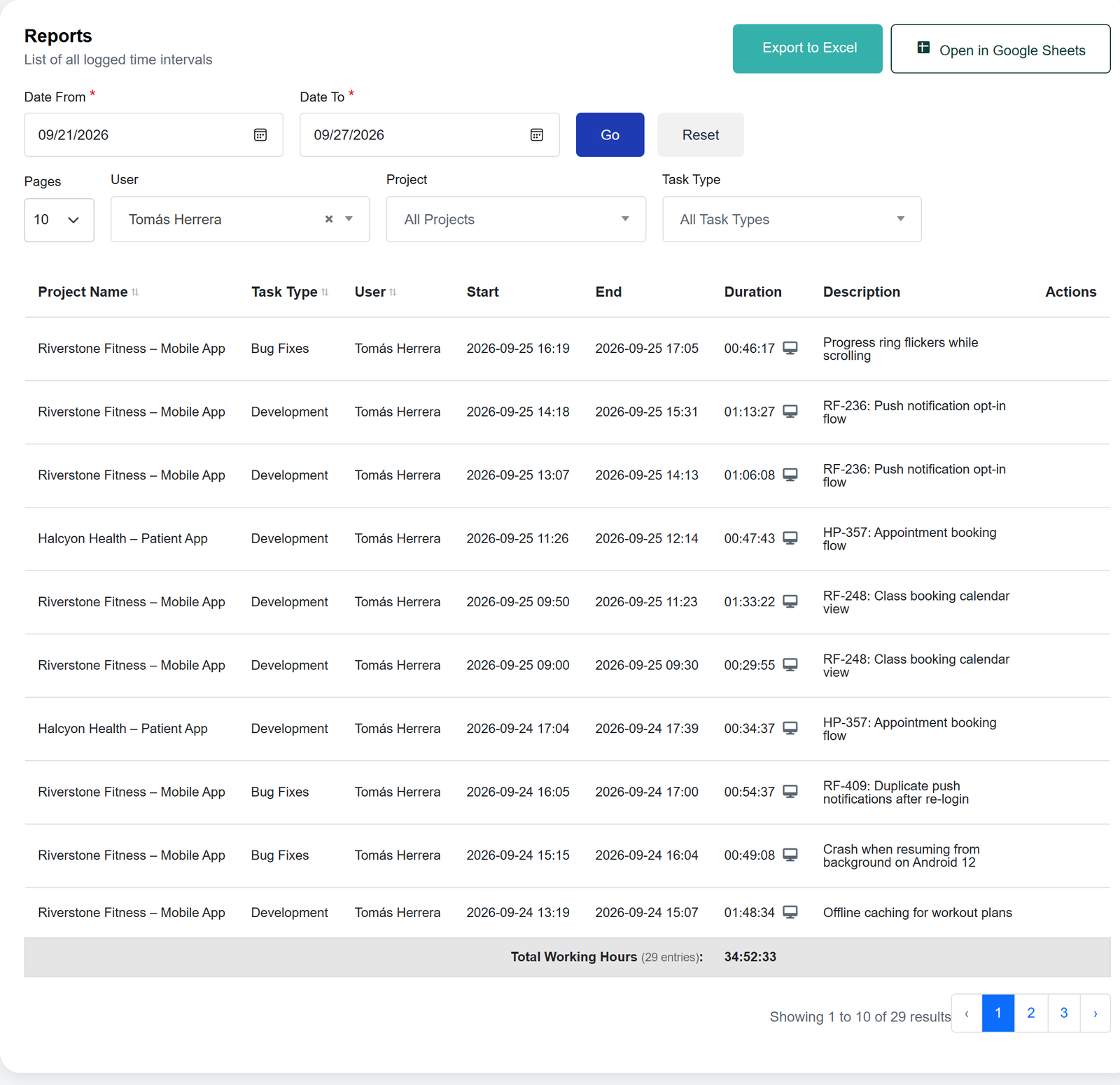
An entry counts on the day it started, and a timer that is still running joins the total only once it is stopped.
For a team timesheet you can file or send on, press Export to Excel with the same dates. You get one row per entry with the project, task type, person, start, end, duration and note.
Common mistakes
- Adding the manager as a member. A member sees only their own time. To read the team’s, they have to be its Lead User.
- One team for everyone. Fine for five people. For fifty, it hands one lead everybody’s hours and every other manager none. Draw teams the way your managers are drawn.
- A project on the wrong team. The people doing the work cannot find it in their timer, and the lead who should see its hours does not. Check the project’s Team first.
- Looking for a Team filter. There is none. A lead already sees their team, and an admin picks the team’s project.
- Leaving Date To on today. You wanted last week and got last week plus this one.
- Reading a short week as a slow week. Someone on two teams logs part of their time on the other team’s projects. Those hours are in that lead’s report.
- Deleting a team that still has projects. Its people lose those projects in their timer and the lead loses the report. Move the projects to another team first.
Frequently asked questions
Everyone sees their own entries. A team lead also sees the entries their members log on the projects of the teams they lead. Admins see the whole organization.
Yes. A person can be a member of several teams and can lead more than one. Each project belongs to one team, so they get the projects of every team they are on.
Yes. Time Tracker Software HQ is free for every seat while it is in early access, and signing up needs no credit card. You will be told well ahead if that changes.
No. It records what a person starts and stops themselves: the project, the task type, the start and end times, an optional note and the kind of device used. There are no screenshots, no keystroke or mouse counts and no list of apps or websites.
Open Reports and choose the dates. A team lead's report already holds only their team; an admin picks the team's project. Then press Export to Excel. The file has one row per entry and a total at the bottom.