
Why software teams track time
A sprint board tells you what shipped. It does not tell you what it cost. Time tracking in software development closes that gap, and it pays off in three specific ways.
- Estimates get better. “About a week” becomes “31 hours over five days.” After a few sprints you are planning from your own numbers instead of gut feel.
- Invisible work becomes visible. Meetings, code review, bug fixes, deploys and “quick questions” fill a real share of the week and never appear as tickets. Tracked, they stop being a surprise.
- Projects get a real cost in hours. When people split their week across projects, nobody knows what a project took until someone adds it up. With entries by project, that number is one filter away.
None of this needs a heavy process. A software development time tracking tool has two jobs: a timer people will actually use, and task types that match how your team really works.
What a software team should track
Start with the buckets that eat the week. In Time Tracker Software HQ each of these is a task type you create, and every time entry carries one, so a report can tell “building it” from “fixing it.”
Coding
Building features and refactoring. Split it into Backend and Frontend if your team is big enough to care about the difference.
QA and testing
Test passes, regression runs, writing test cases. Tracked, it shows whether quality work is keeping pace with feature work.
Debugging and bug fixes
Investigating and fixing defects. Kept apart from feature work, it shows how much of a sprint goes on maintenance.
Meetings
Stand-ups, planning, reviews and calls. The easiest type to forget and the easiest to underestimate.
Deployment
Releases, CI/CD, environments and hotfix evenings. Small each time, large over a quarter.
Code review and documentation deserve their own task types once they make up a noticeable share of the week.
Set up projects and task types
Setup is a one-time job for whoever administers the organization, and it takes about as long as it takes to agree on the names.
Create your organization
One form creates it and your admin account. Confirm your email and you are in.
Add people and teams
Add your developers, QA and designers, then group them into teams. Each team has a lead.
Create task types
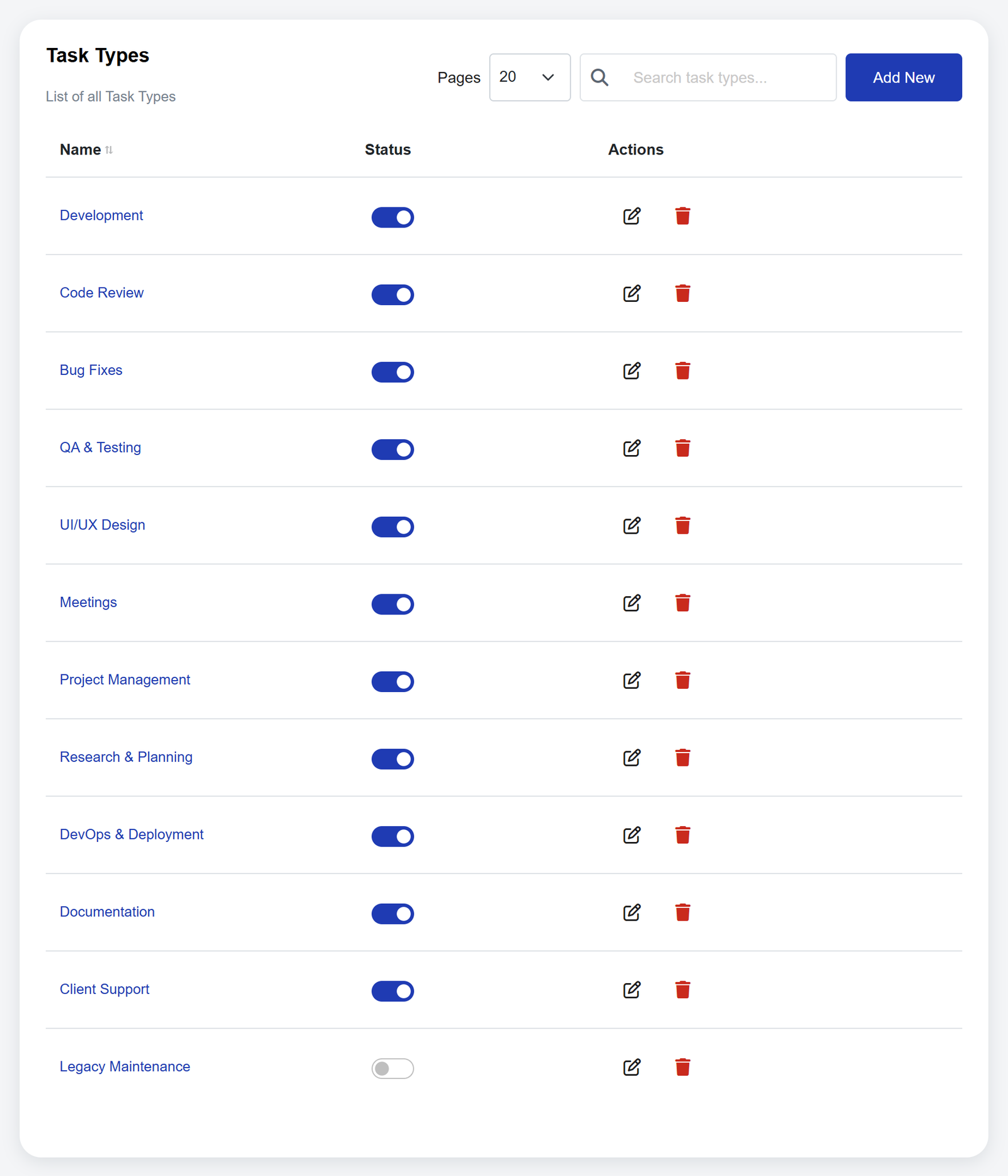
Five to eight is plenty. They belong to your organization, so name them the way your team talks.
Create projects
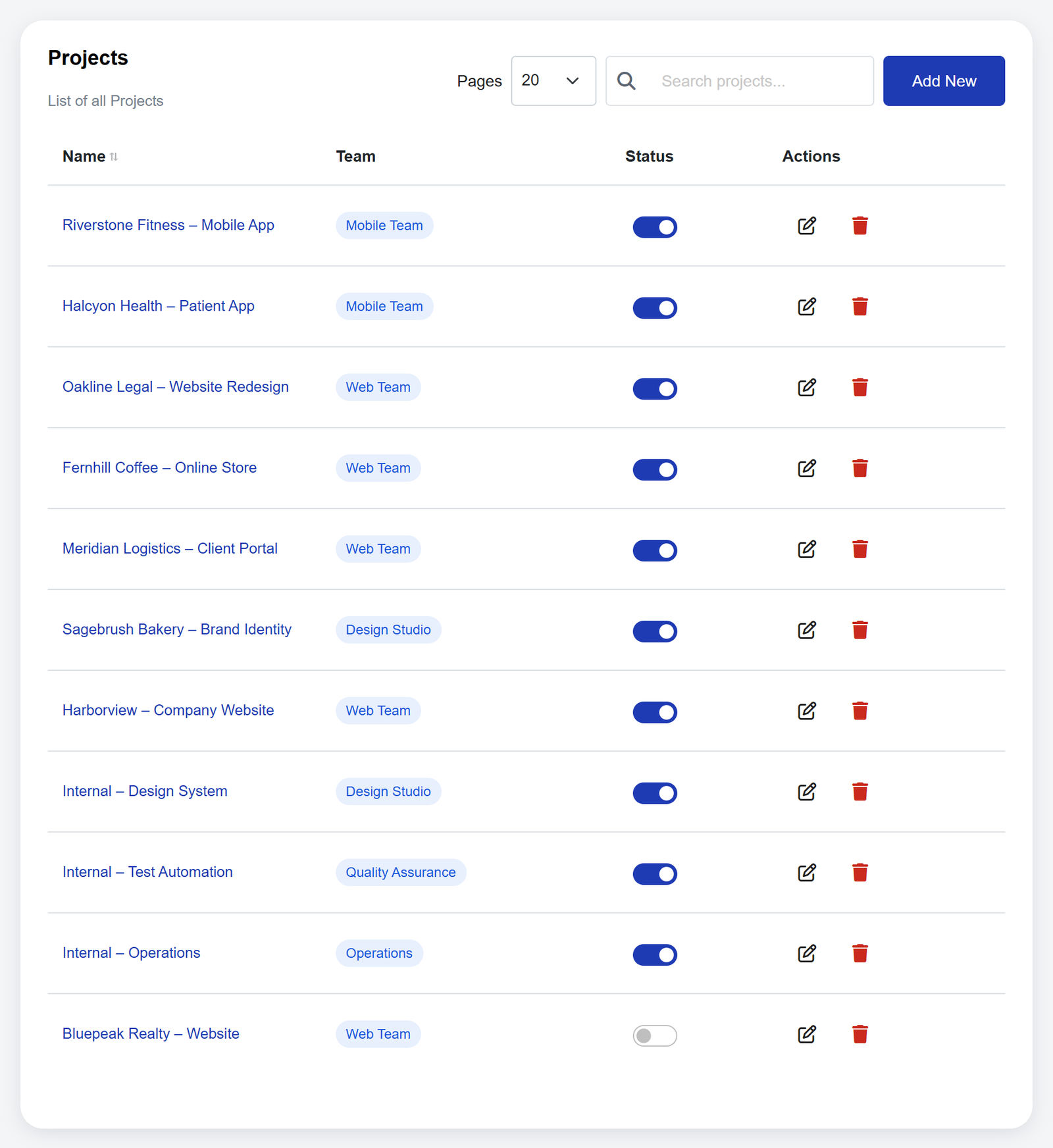
Give each project a team and choose which task types apply. People see the projects of the teams they belong to.
Install the desktop timer
Everyone signs in on the web console and downloads the build for their platform: Windows or Linux today, with macOS launching soon.
A task-type set that suits most dev teams
Create these under Task Types. Each project only offers the task types you attach to it, so a design-only project will not ask for “Deployment.”
A developer’s day with the timer
Software engineer time tracking has to cost seconds, or it does not get done. The desktop timer is a few fields and a button: pick the project, pick the task type, add an optional description, press Start. Here is an ordinary Tuesday on a Mobile App project.
- Stand-up Pick the project, choose Meetings as the task type, press Start. Stop fifteen minutes later.
- Backend work Project Mobile App, task type Backend, description “Retry logic for payment webhooks.” Start.
- Code review Stop, switch the task type to Code Review, note which pull request, Start again.
- Lunch Stop. Nothing runs while nobody is working.
- Bug fix Task type Bug Fixes, description “Crash when the app resumes on Android 12.” If the Wi‑Fi drops, the timer keeps running and the finished entry waits on the computer (“1 interval pending sync”) until the connection returns or you press Sync Pending.
- Done Stop. There is no timesheet to fill in on Friday: the week is already in the log.
What is recorded: the project, the task type, your note, when the timer started and stopped, and which platform recorded the entry. It does not capture your screen, your keystrokes or what you were doing on the computer.
How to see a week of hours by task type
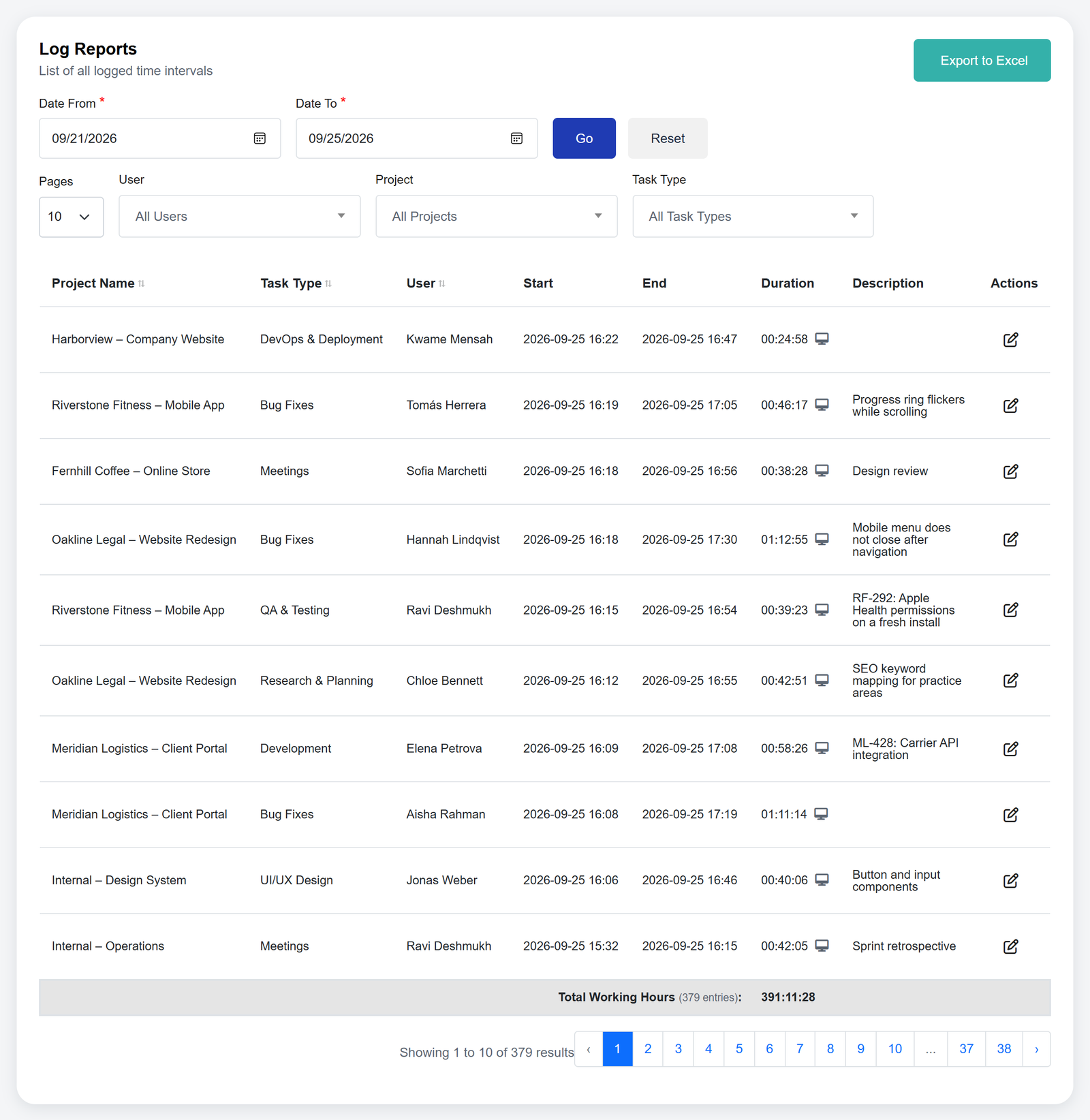
Open Reports, choose the dates for the week, pick the project and one task type, and press Go. The total for exactly those entries is at the bottom of the results. Do that once per task type, or export the filtered entries to Excel and work from the spreadsheet.
Agile and scrum time tracking: a sprint instead of a week
Time Tracker Software HQ has no sprints, story points or board. Those stay in the tool you plan with. Agile time tracking only needs the hours to sit beside them, and here a sprint is a date range.
- Hours per sprint. Set the dates to the sprint’s first and last day, pick the project and press Go. The total at the bottom is what the sprint took.
- Scrum events. Log stand-ups, sprint planning, the review and the retrospective under Meetings, then filter by that task type to see what they cost in a sprint.
- Estimates against actuals. Put the ticket number in the description when you start the timer. Export the sprint to Excel and set the hours beside the estimates on your board.
How managers use the hours
Managers do not need every entry. They need answers, and the log can be filtered to give them:
- How many hours did the Mobile App take this month? Filter by project and dates. The total is at the bottom.
- Who worked on it, and on what? Add a person or a task type to the same filter.
- How much went on fixes instead of features? Compare Bug Fixes with Backend and Frontend for the same project and dates.
- Are meetings taking over? Filter by the Meetings task type across the team for the week.
What each person can see depends on their role. Admins see the whole organization, team leads see the entries of the teams they lead, and everyone else sees their own. Correcting an entry is a permission too, and every change is written to the activity log, so the record stays trustworthy.
For software agencies and studios
If you build software for other people, the same setup answers the questions an agency lives on: which projects are taking the hours, who is spread across too many, and what a job really took.
- One project per engagement. Name it after the work, for example “Oakline Legal – Website Redesign,” so the log reads like your project list.
- Teams as squads. Put each squad on its projects. People see the projects of the teams they belong to, and nothing else.
- Hours by project and by person. Filter the log to one project and a date range for its total, then add a person or a task type to see what it was made of.
- Excel at month end. Export a project’s month and open it wherever you prepare estimates, invoices or payroll.
Time Tracker Software HQ records the hours. What you do with them afterwards happens in your own spreadsheets and tools.
Common mistakes
- Too many task types. Give people fifteen options and they pick the first one. Five to eight, and merge the ones nobody uses.
- No task type for meetings. Without one, meetings disappear into “development” and the week looks more productive than it was.
- Mixing bug fixes with new work. Keep them apart or you cannot see how much of a sprint is maintenance.
- Filling the timesheet on Friday. Memory rounds every day to “about eight hours.” Start and stop the timer as you switch tasks, and correct the odd mistake afterwards.
- Using hours to rank people. Tracked time shows where effort went, not who is good. Use it to plan and estimate. Turn it into a leaderboard and people will game it.
- Never looking at it. A log nobody reads is just overhead. Put the weekly total by task type on the agenda of your sprint review.
Frequently asked questions
The work that fills the week: coding (split into backend and frontend if you like), QA and testing, bug fixes, meetings and deployment. Add code review and documentation if they take a real share of your time. Every entry is tied to a project and a task type, with an optional note.
Yes, as the record of hours beside your board. Time Tracker Software HQ has no sprints or story points. A sprint is a date range in Reports, and stand-ups, sprint planning, reviews and retrospectives go under a Meetings task type.
Yes. The desktop timer keeps running locally and queues the finished entry on that computer, then uploads it when the connection returns. A banner shows how many entries are waiting, and each one carries a unique key so a retry never creates a duplicate.
The desktop timer runs on Windows and Linux today, with macOS launching soon. The web console, where you manage projects, people and reports, runs in any modern browser.
Yes. Filter the log by dates, people, projects and task types, then export exactly that to Excel. The file lists the project, task type, person, start, end, duration and description of every entry, with a total row at the bottom.
It depends on the role. Admins see the whole organization, team leads see the entries of the teams they lead, and everyone else sees their own. Roles and permissions also decide who can correct entries, and every change is written to the activity log.
No. Time Tracker Software HQ records the project, the task type, an optional note, when the timer started and stopped, and which platform recorded the entry. It does not capture screens or keystrokes.
No. Time Tracker Software HQ records and reports hours. It has no rates or invoices, so export the hours to Excel and use them wherever you prepare estimates, invoices or payroll.
It is free while it is in early access, for every seat, with no credit card to enter. If that changes we will tell you well in advance.