
What offline time tracking means
Offline time tracking means the timer records your work with no internet connection, and the record still ends up where the rest of your hours are. The second half is the part that matters, because two different things are called an offline time tracker:
Offline, then synced
Saved on your computer first, sent later
- Entries are saved locally the moment you stop
- They are sent when the server can be reached
- Everyone’s hours end up in one set of reports
- Needs an account, and a connection to sign in
Local only
Everything stays on one computer
- No account and no server
- Only the person at that computer sees the hours
- A team total means collecting a file from each person
- The record is lost if the computer is
Time Tracker Software HQ is the first kind. Its desktop time tracker saves to your computer, and the website, where the projects, the people and the reports are, receives each entry when it can. That leaves a short list of things that do need a connection:
| What you do | With no connection |
|---|---|
| Start and stop the timer | Works. |
| Choose a project and a task type | Works, from the list saved when the app was last online. |
| Write the note | Works. |
| Sign in | Needs a connection. The app keeps you signed in between sessions. |
| Pick a project created since then | It appears the next time the list loads. |
| Read reports, export to Excel | Both are on the website, so they wait for a connection. |
Why a timer that needs the internet fails
A timer that saves straight to a server has to reach that server at the exact moment you press a button. Most of the day it can. The moments it cannot are ordinary ones:
- The laptop has just woken up. You press Start before the Wi-Fi has come back.
- The VPN is reconnecting. The network is there and the route to the server is not.
- The Wi-Fi wants a sign-in page. A hotel or a train reports a connection that reaches nothing until you accept its terms.
- There is no network at all. A flight, a client’s site, a server room in the basement.
What the timer does next decides whether people keep using it. It refuses to start, and the work is typed in from memory later. Or it shows an error at Stop, and the entry is gone. Or it looks saved and is not, and the gap turns up at the end of the month.
One lost afternoon is enough for a team to stop trusting the timer. Using a time tracking app offline should feel no different from using it online, and the way to get there is not a better connection. It is a timer that saves first and sends afterwards.
Remote teams meet these moments every day. What else changes when nobody shares an office is in the guide to time tracking for remote workers.
What the desktop timer does with no connection
The desktop timer does not check for a connection before it lets you work. This is one entry from start to stop with the network off:
- You press Start. The start is written to a small database on your computer before the clock begins to count. Nothing is sent anywhere.
- The timer runs. Every 30 seconds the app records that it is still running, along with the note as you have typed it so far. That record is what it reads back if the computer restarts in the middle of an entry.
- You press Stop. The app tries the server. With no answer, it puts the whole entry in a queue on your computer: project, task type, note, start and stop.
- It tells you. A message reads “Saved offline” with the duration, and an orange notice above the Project field counts what is waiting: “1 interval(s) pending sync”.
- You carry on. Start the next entry. Each one you stop joins the queue and the count goes up.
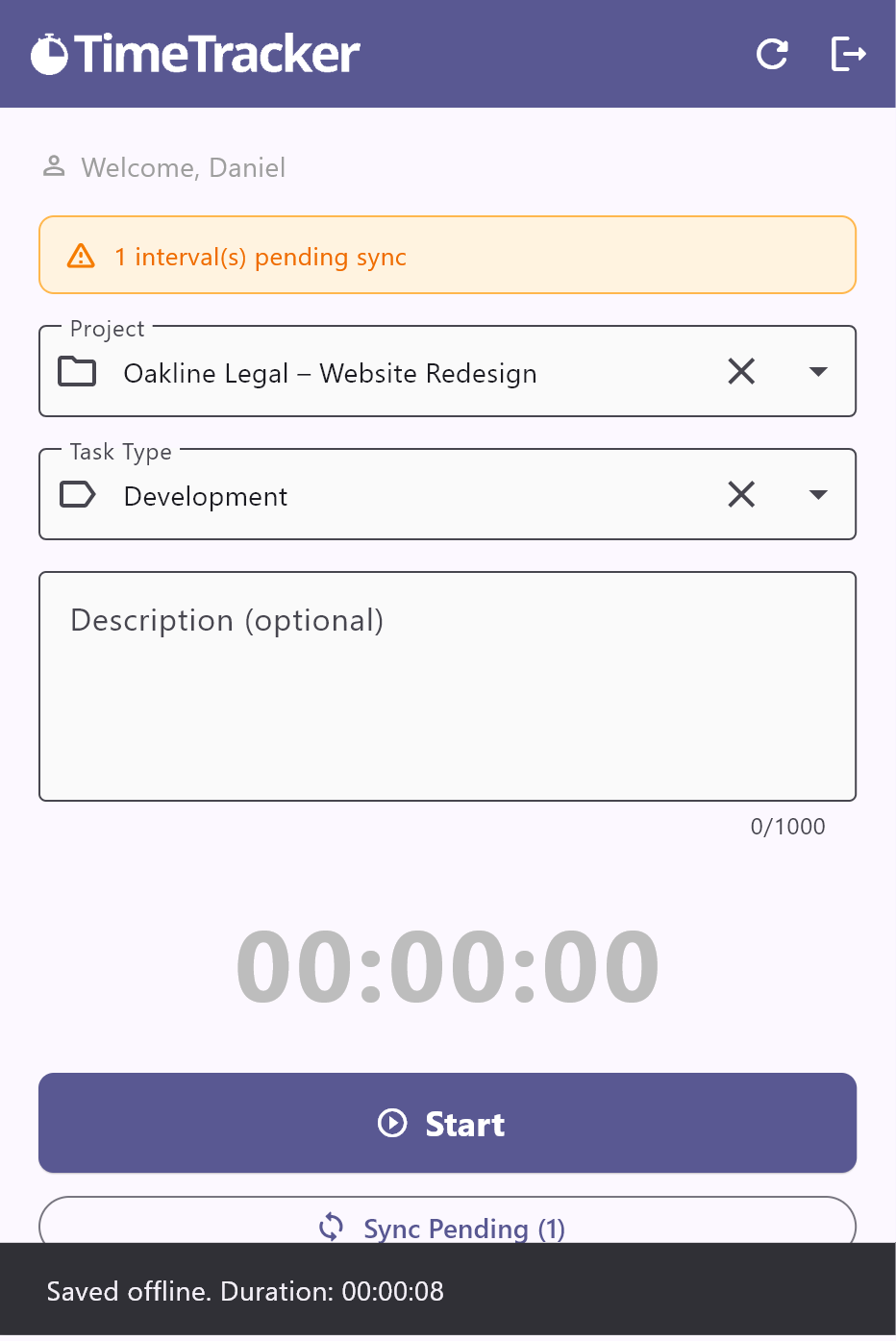
A pending entry is safe, but it is in one place. It stays in the queue when you close the app or switch the computer off. Until it is sent it is not in Reports, and nobody else can see it.
What happens when the connection returns
Nothing you have to do. The app does not wait for Windows or Linux to say the network is back, because a sign-in page or a dead VPN also counts as connected. It asks the server itself, at three moments:
- When the app opens. Whatever the last session left behind is sent first.
- Every two minutes while something is waiting. With an empty queue the check does not run at all.
- When the project list loads. If the list came through, the server is reachable, so the queue goes with it.
To send at once, press Sync Pending. It answers “Synced 2 interval(s).” or “Nothing synced. Check connection.” If the count does not go down, the complete guide’s troubleshooting step covers it.
What a sync does
- Oldest first. Entries reach the server in the order you recorded them.
- One at a time. An entry leaves the queue only when the server confirms it. If the connection drops halfway, the rest stay queued.
- With the times you pressed. In Reports the entry starts and ends when you pressed the buttons, not when it was delivered.
One case ends differently. If the server answers that it will not accept an entry, for example because you were taken off the project’s team while you were offline, the app removes it from the queue. Asking again would get the same answer.
A day with a bad connection
- Start, at a client’s office with no guest Wi-Fi The timer starts as it does at your desk.
- Stop, then Start on the next task “Saved offline.” The notice reads 1 interval(s) pending sync.
- Stop for lunch Still offline. 2 interval(s) pending sync.
- Back on your own network Within two minutes both entries are sent and the notice disappears. Reports shows 08:40 to 11:15 and 11:15 to 12:30.
Why an entry is never saved twice
Retrying has a known trap. The app sends an entry, the server stores it, and the connection drops before the answer gets back. To the app that looks exactly like an entry that never arrived, so it has to send it again. Software that is careless here stores the hour twice, and a doubled hour is worse than a missing one, because nobody goes looking for it.
Time Tracker Software HQ closes the trap with one rule: every entry has an ID of its own, and the server stores each ID once.
- The ID is made on your computer when you press Start, and saved with the running timer.
- It stays with the entry in the queue, in every retry and in an entry recovered after a restart.
- The server’s database refuses a second row with the same ID. When a copy arrives, the server answers “saved”, leaves the first one as it is and adds nothing.
| What happens | Why there is still one entry |
|---|---|
| The server’s answer is lost | The app sends the entry again with the same ID, and the server keeps the first copy. |
| You press Sync Pending during a retry | The app runs one sync at a time, so the second request does nothing. |
| The app crashes just after sending | At the next launch it offers the entry again, with the ID it was started with. The server recognises the copy it already has. |
This is what lets the queue retry as often as it needs to. A second delivery is harmless.
Where the desktop app runs
The desktop app is an offline time tracker for Windows and for Linux, and a macOS version is launching soon. It is the same app on each: one small window, and the queue this page describes.
To get it, sign in on the website and open Download App. The complete guide walks through the install. The download and the first sign-in need a connection. After that the timer works with or without one.
Away from the desk, the Android app on Google Play and the iPhone app on the App Store keep entries the same way: saved on the phone, counted as pending, sent later. The browser extension for Chrome, Opera and Firefox has a queue of its own.
Frequently asked questions
One that saves each entry on your own device before it sends anything. Time Tracker Software HQ works this way: the desktop timer for Windows and Linux starts and stops with no connection, counts the entries that are waiting and sends them once it can reach the server. A timer that lives only in a web page needs the connection at the moment you press the button.
Yes. Time Tracker Software HQ costs nothing for any seat while it is in early access, signing up takes no credit card, and working offline is part of the desktop app for everyone. You do need an account, and a connection the first time you sign in.
Nothing you have to fix. A running timer does not use the connection, so it keeps counting. When you press Stop the entry is saved on your computer and shown as pending sync, and it is sent by itself when the server answers again. Entries you stopped before the drop were already on the server.
No. Every entry gets an ID of its own when you press Start and carries it through each attempt to send it. The server stores an ID once, so when the same entry arrives again it keeps the first copy and adds nothing.
The entry is not lost. A running timer is written to your disk at Start and confirmed every 30 seconds. Open the app after the restart and it shows Unfinished timer found, with the project, the start time and the duration up to the last confirmation. Press Save to keep the entry or Discard to drop it. Up to 30 seconds at the end may be missing.